
OneCare Remote Access
OneCare is retiring the Citrix Remote Access from April 15, 2026. From this date you will be able to access the same resources by using Microsoft's Windows App. Please follow the instructions below to install the app to access remote resources.
If you experience any issues, please contact OneCare IT Support on 6220 1206 or itsupport@onecare.org.au
- Install the Windows App from the Microsoft Store on Windows PCs or the AppStore on Apple computers (direct links to the app are below). The app is already installed on OneCare laptops
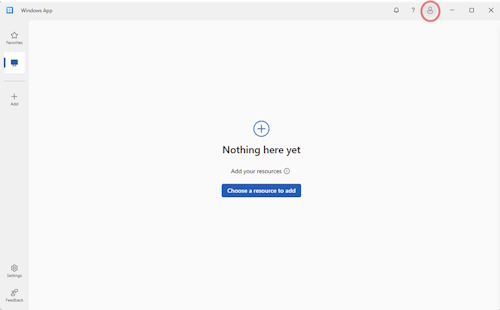
- Once installed, open the app, click on the account icon in the top right and add a new account
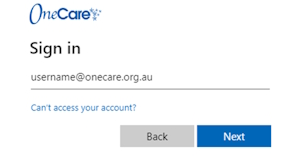
- Sign in with your OneCare credentials
- Your remote desktops and/or apps will be available by selecting one of the options on the left hand side
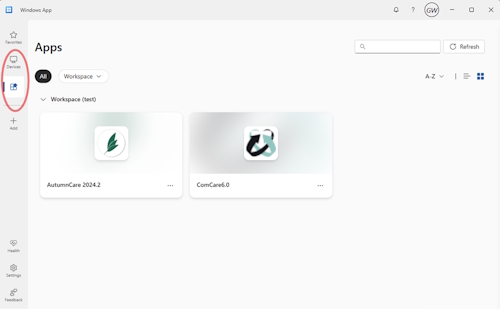
- Click on the app you wish to access, you will be prompted to log in again
General Use
Once you have completed the initial installation, all you need to do for future access open the Windows App, click on the app and log in